Tesla Guide
Recommended gear, custom wraps, and lock chimes—everything Tesla owners need in one place.
Practical guides
Send a wrap through the Tesla app, troubleshoot PNG and USB issues, or edit your lock chime. No API key is needed to read these guides.
Send a wrap through the Tesla app without USB
Save the PNG on your phone, upload it through the Tesla app, and apply it on your vehicle.
Read guideWrap PNG missing from your vehicle?
Check PNG requirements, filenames, the Wraps folder, and USB detection in order.
Read guideClipped or distorted lock chime?
Check trimming, volume, clipping, and WAV file size.
Read guidePlacing a character on a door
Separate background, subject, placement, and excluded areas in your prompt.
Read guideWhat a wrap layout looks like
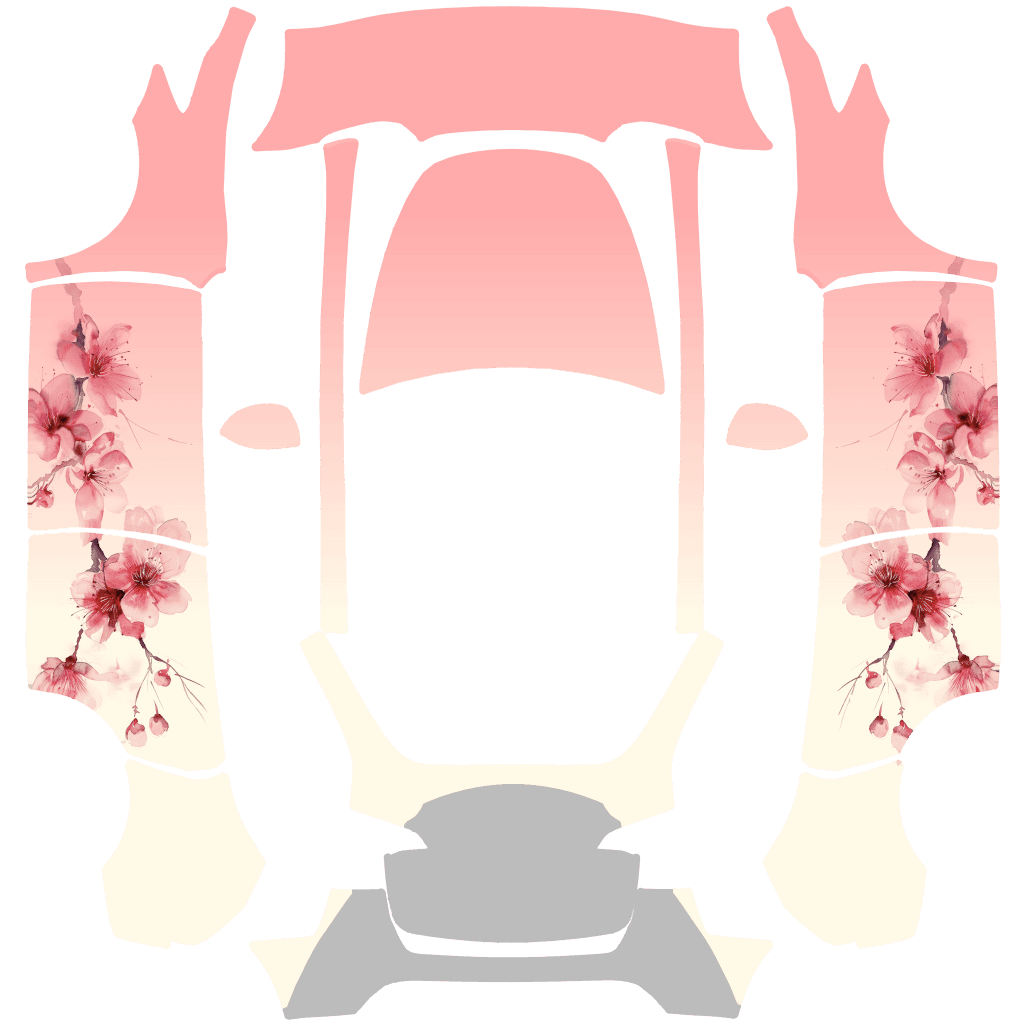
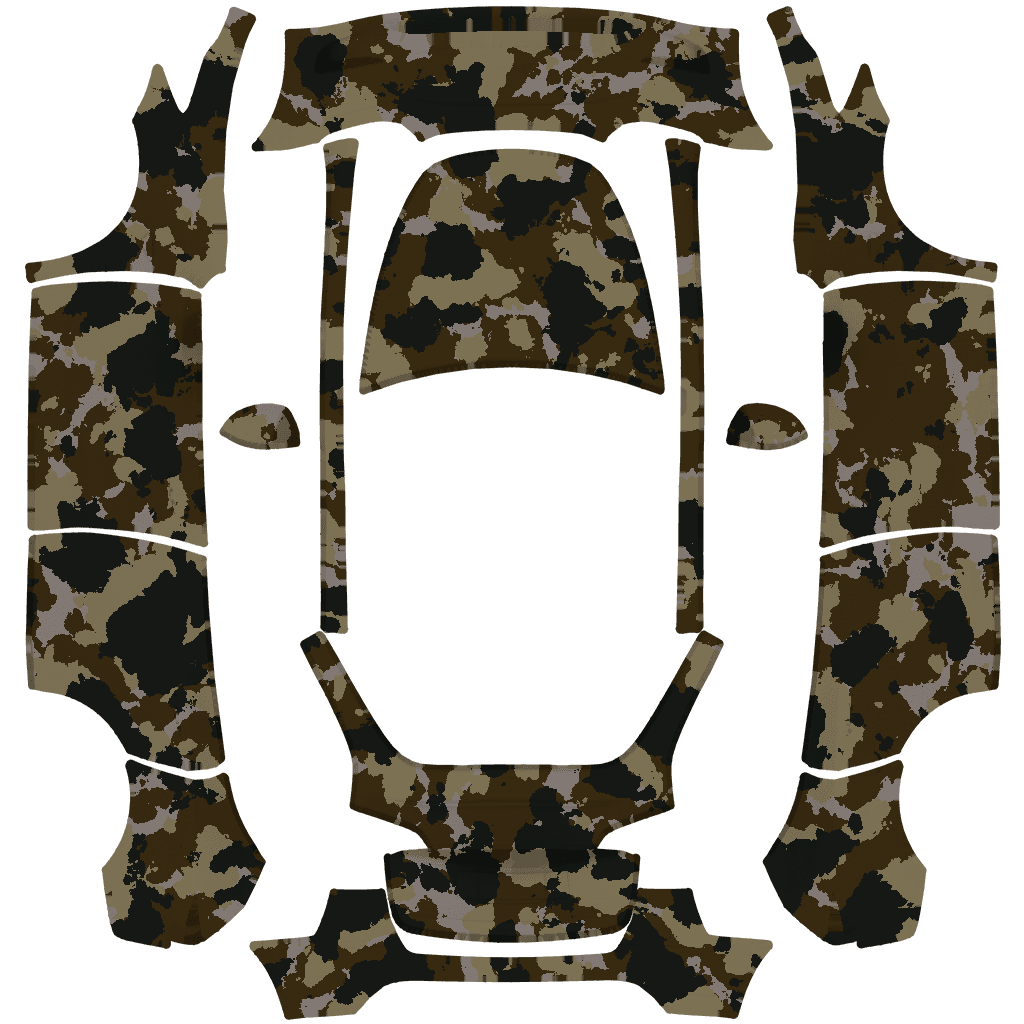
Explore the Sakura and Camo sample layouts for Model Y to see how designs span body panels. The images show flat layouts, not photos of a vehicle.
Guides and examples need no API key. Generating a new design requires your own Gemini API key and may incur charges.
Usage Guide
Create Tesla custom wrap designs with AI, then follow template edges, prompts, gallery sharing, and vehicle apply steps.
Start a custom wrap
Pick a model and design a wrap with AI.
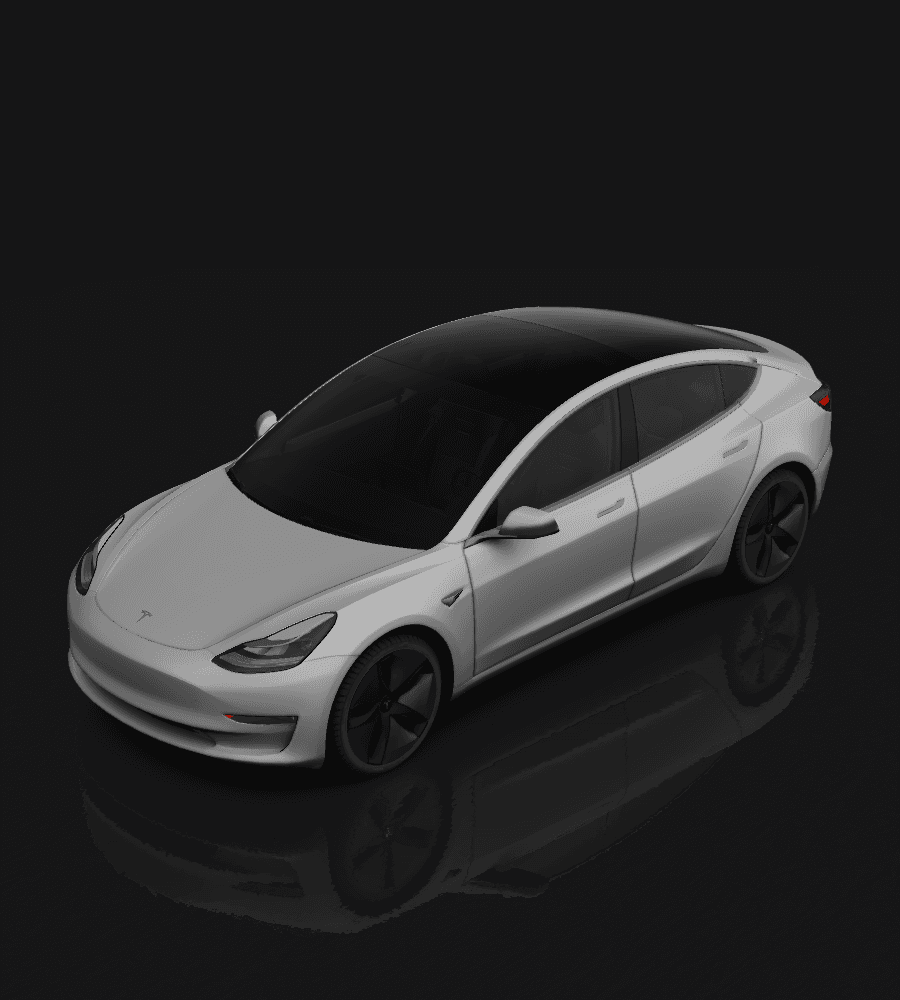
Model 3
model3
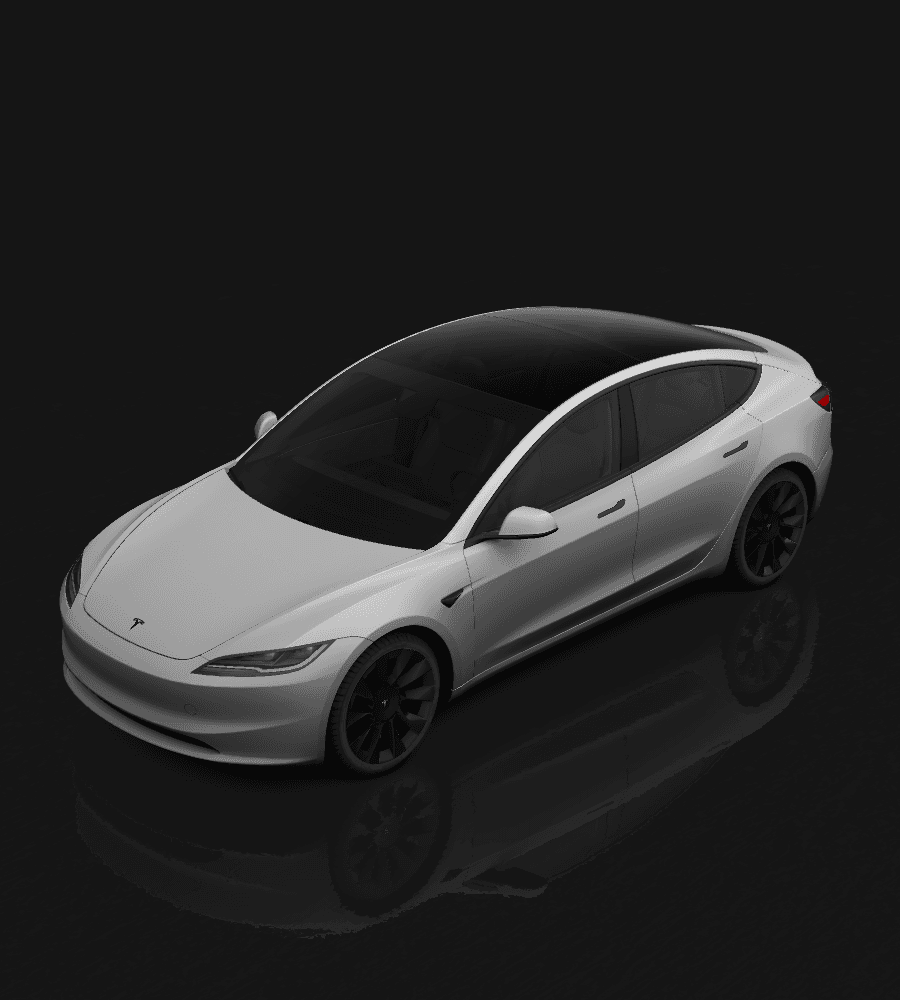
Model 3 2024 Base
model3-2024-base
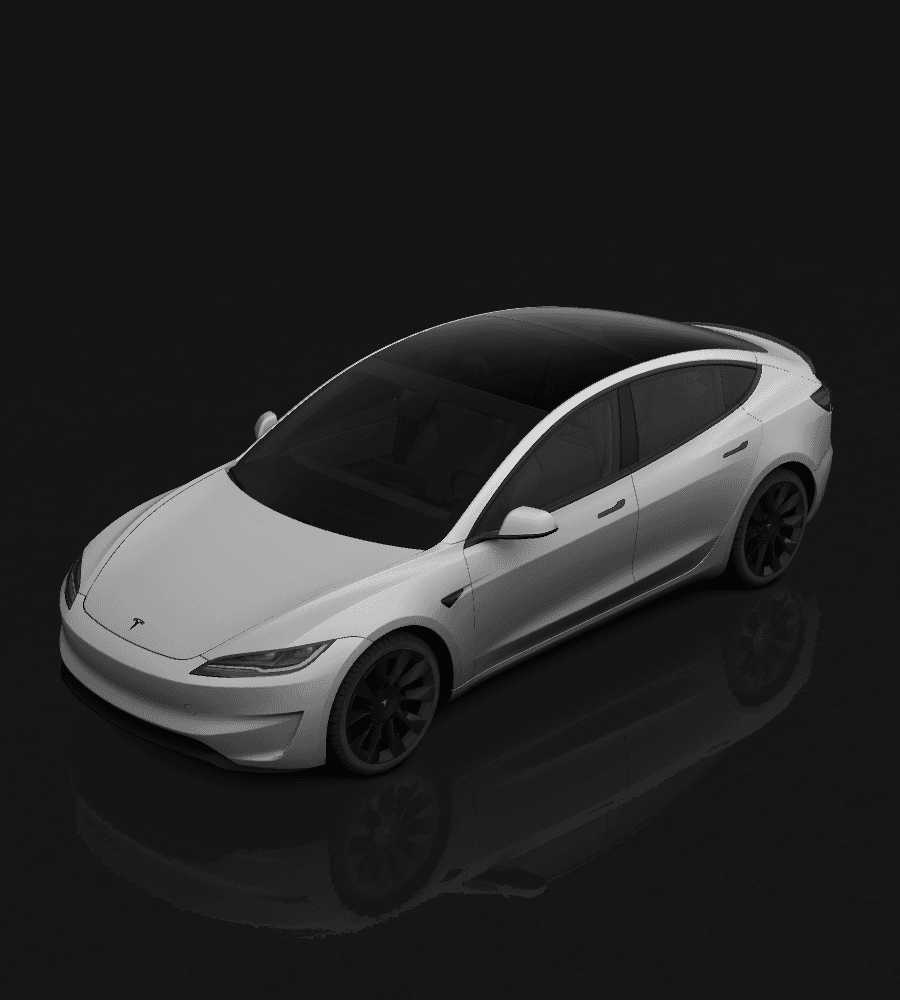
Model 3 2024 Performance
model3-2024-performance
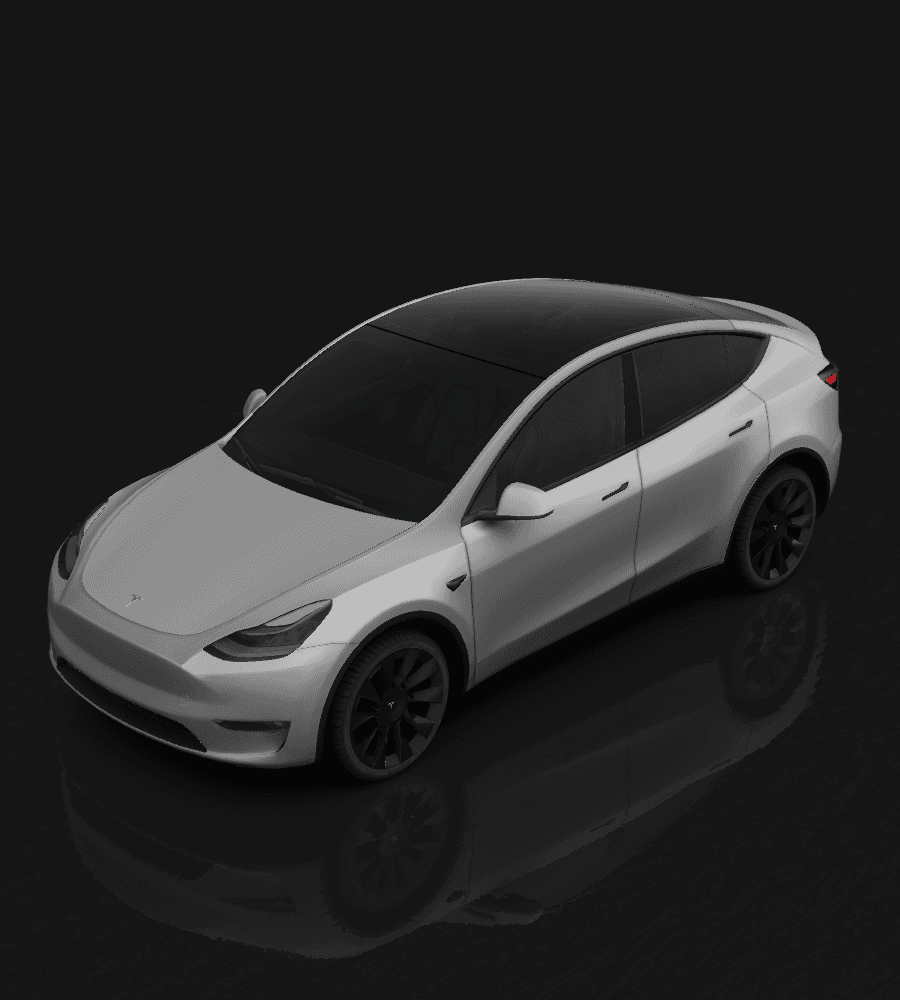
Model Y
modely
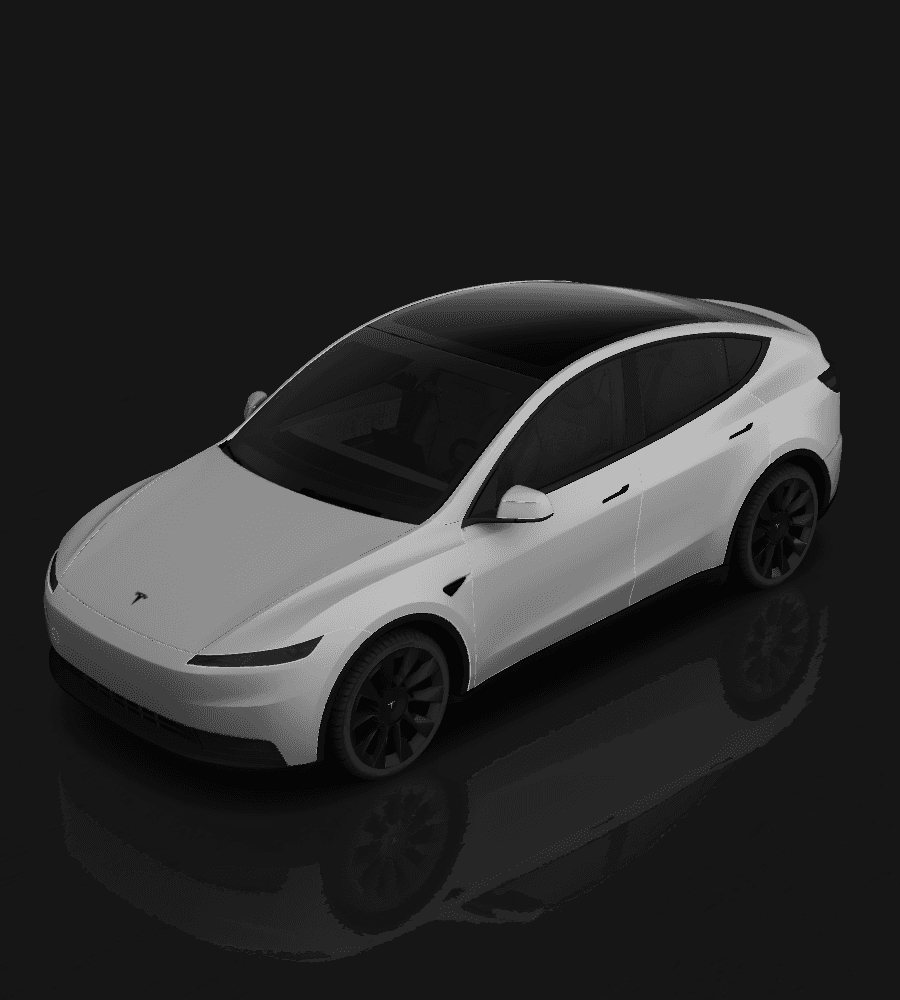
Model Y 2025 Base
modely-2025-base
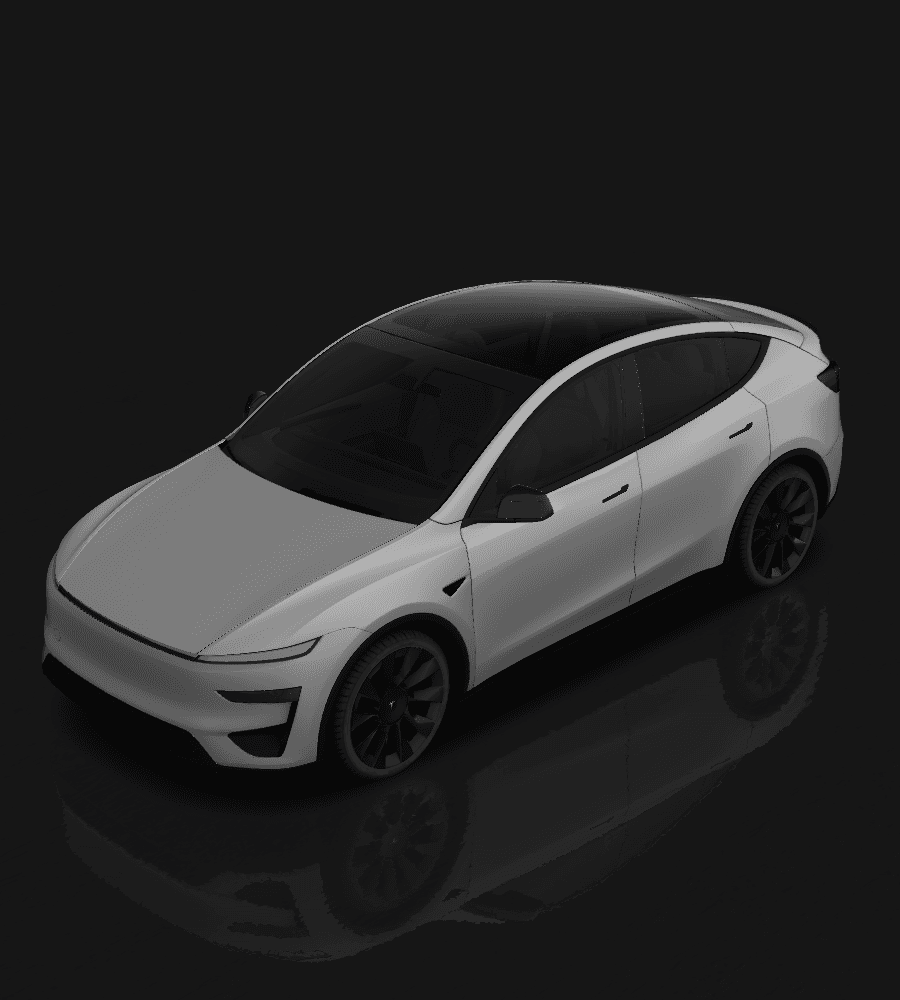
Model Y 2025 Performance
modely-2025-performance
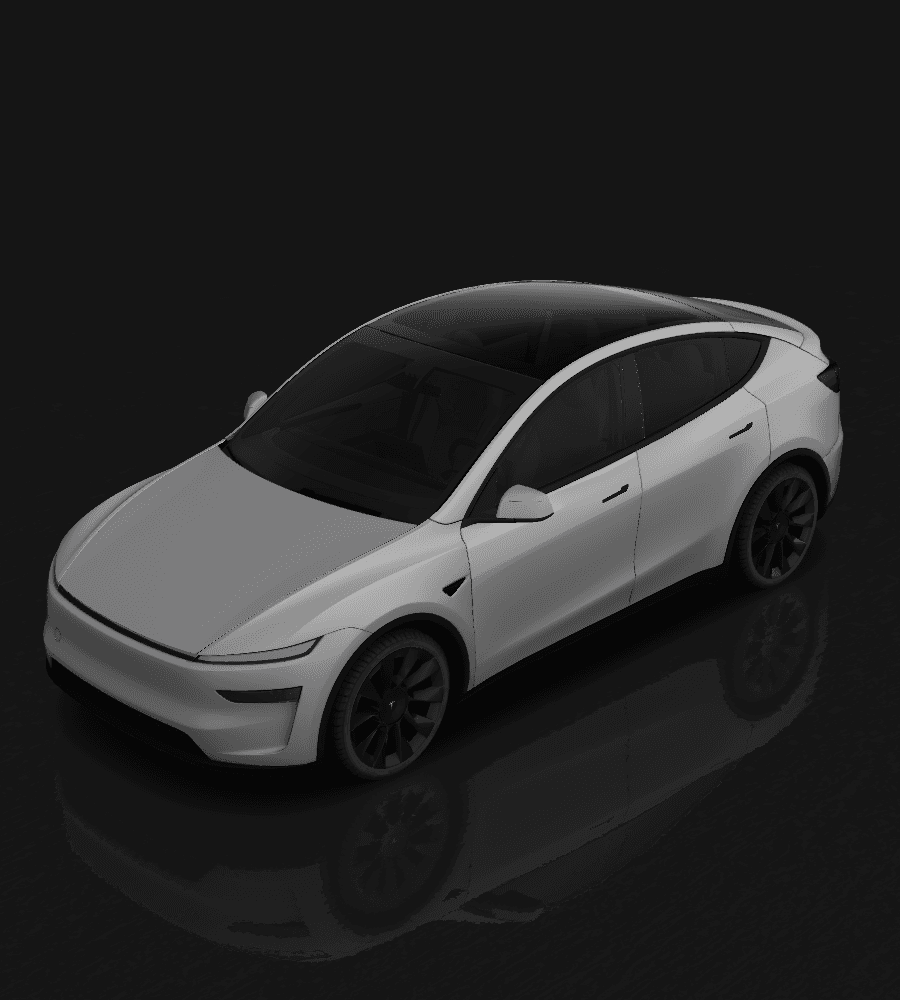
Model Y 2025 Premium
modely-2025-premium
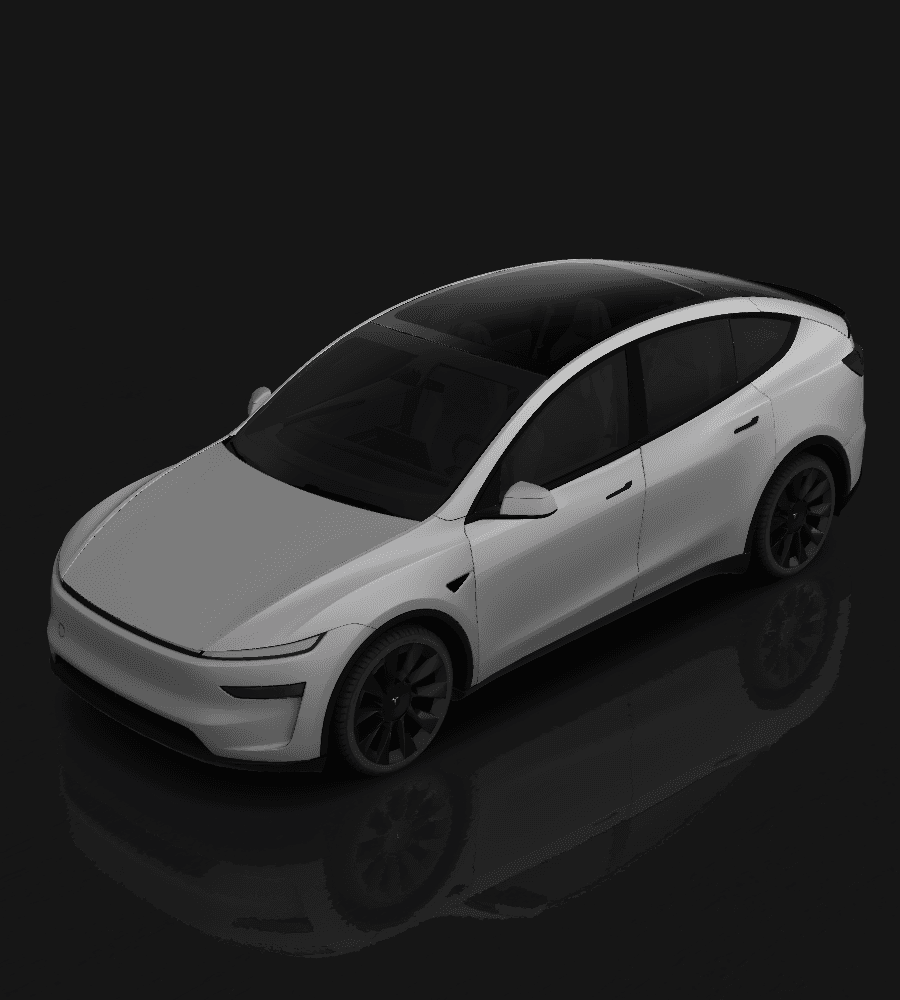
Model Y L
modely-l
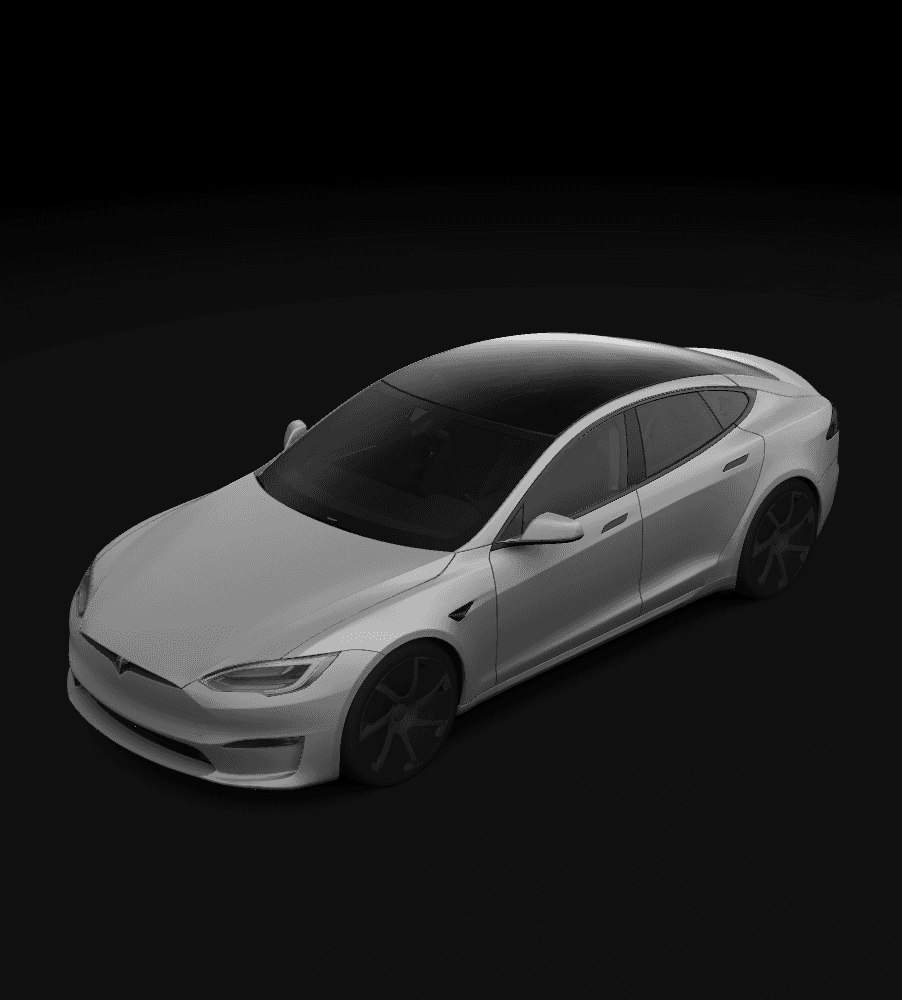
Model S (2021+)
models-2021
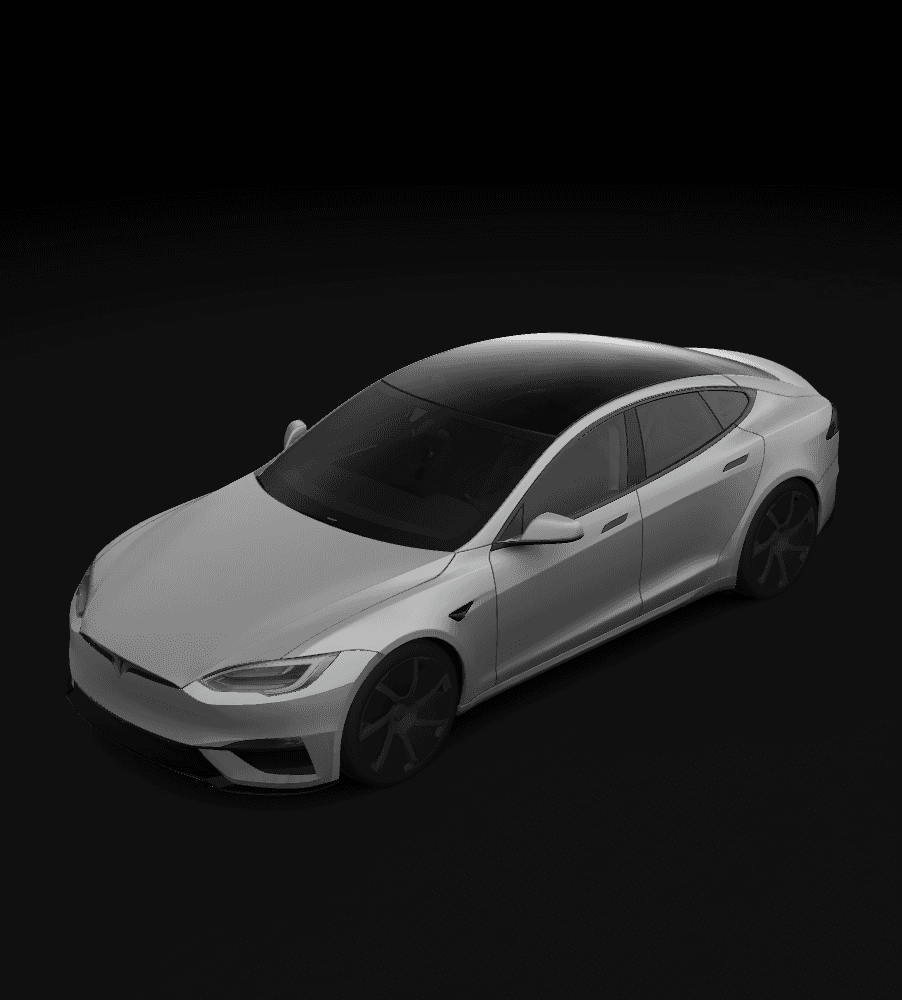
Model S Plaid (2025+)
models-2025-plaid
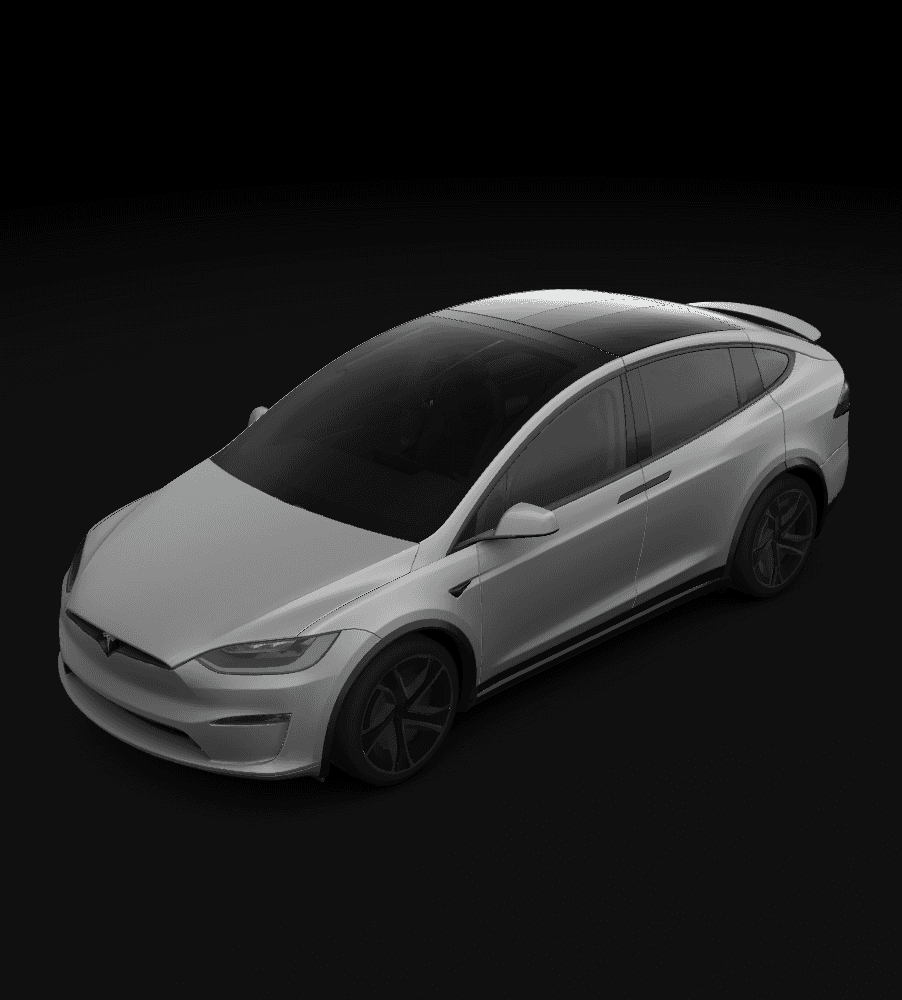
Model X (2021+)
modelx-2021
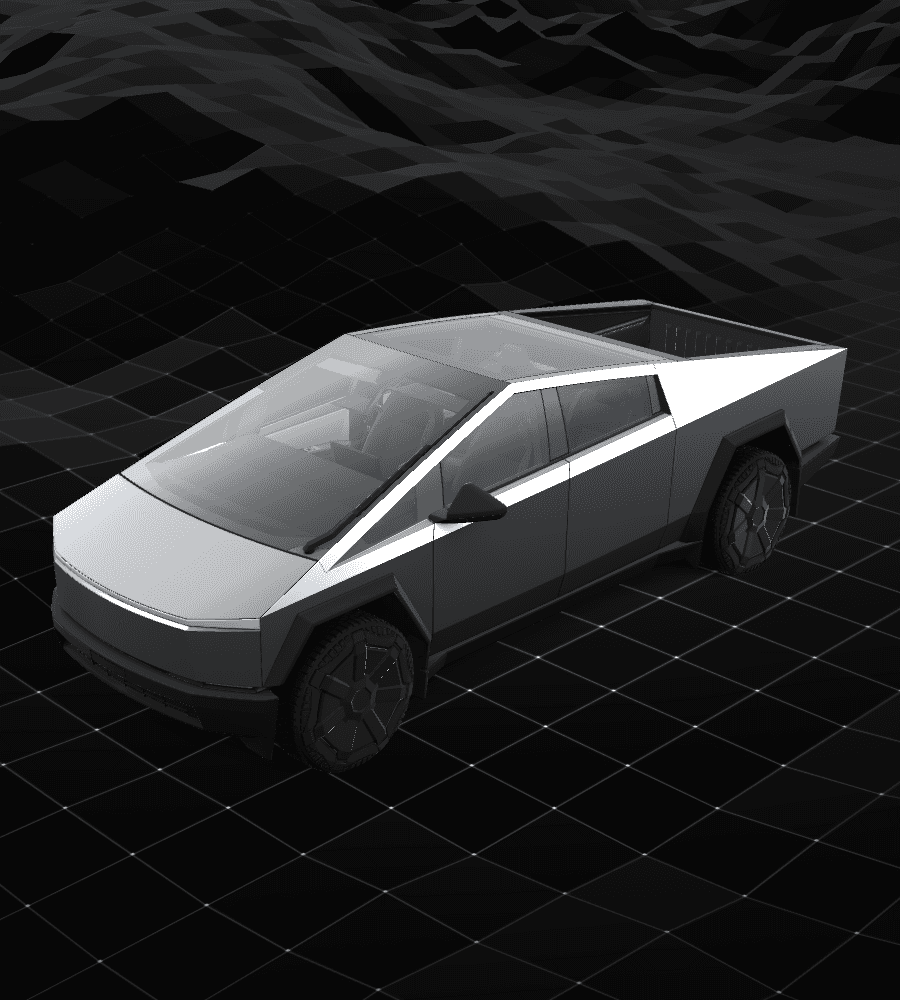
Cybertruck
cybertruck
Tesla Guide
What is a Tesla Custom Wrap?
A Tesla Custom Wrap is a digital wrap image that changes how your vehicle looks in the 3D view. Select it from the Wrapping menu on the touchscreen and it applies instantly. It is software customization, not physical paint, and works on Model 3, Model Y, Cybertruck, and more.
Tesla Custom Studio is an unofficial web tool that creates new designs matching Tesla's wrap template specs. Describe your style in text—no Photoshop needed—and get a PNG you can save to USB and apply in your vehicle.
Key features
12 model templates
Supports 12 official template formats including Model 3, Model Y, Model S, Model X, and Cybertruck. Pick the item that matches your vehicle settings.
AI text-to-design
Type a style like "matte black body with red stripes" and Google Gemini AI draws it on the template.
Gallery community
Browse, like, and download other users' designs. Share your own when you download.
Detailed guides
Step-by-step help from API key setup to prompt tips and applying wraps on your car.
How to use
- 1Choose your vehicle model on the home page.
- 2Issue and register a Google Gemini API key on the guide page.
- 3Describe your wrap style on the customize page.
- 4Review the result and download the PNG.
- 5Save to your Tesla USB Wraps folder and apply in Toybox > Wraps.
Prompt examples
These are real prompts you can try. You can also browse gallery results without an API key.
Model 3
“Midnight blue matte base, cyan gradient stripe from doors to hood”
Cybertruck
“Military digital camo, olive green and tan, keep panel boundaries”
Model Y
“80s outrun style, purple-pink neon grid, strong contrast on dark background”
FAQ
Official Tesla service? API costs? How to apply on vehicle?
This is an independent personal project not affiliated with Tesla, Inc.